Docker is an open-source containerization platform. It packages an application with all its libraries into a container and runs it the same way on any machine. One computer can hold many containers, and they don't interfere with each other or with the host system.
Which Ubuntu versions are supported
According to Docker's official documentation you need 64-bit Ubuntu, one of:
- Ubuntu 25.10 (Questing)
- Ubuntu 25.04 (Plucky)
- Ubuntu 24.04 LTS (Noble)
- Ubuntu 22.04 LTS (Jammy)
Check your version:
lsb_release -a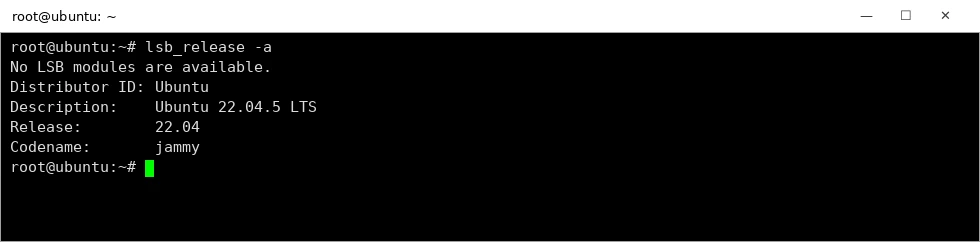
Step 1. Remove unofficial packages
Ubuntu's repository has its own builds: docker.io, docker-compose, docker-compose-v2, docker-doc, docker-buildx, podman-docker, plus containerd and runc. They conflict with Docker's official packages, so remove them before installing. If none are present, the command simply does nothing.
apt remove $(dpkg --get-selections docker.io docker-compose docker-compose-v2 docker-doc docker-buildx podman-docker containerd runc | cut -f1)Step 2. Preparation
Update the package list and install two packages: curl to download the key and ca-certificates to verify HTTPS certificates. On Ubuntu 22.04 they are usually already there. apt-transport-https and software-properties-common, often recommended by older guides, aren't needed for this install.
apt update
apt install -y ca-certificates curl
Check that the packages are installed (ii at the start of the line means installed):
dpkg -l curl ca-certificates gnupg | tail -n +4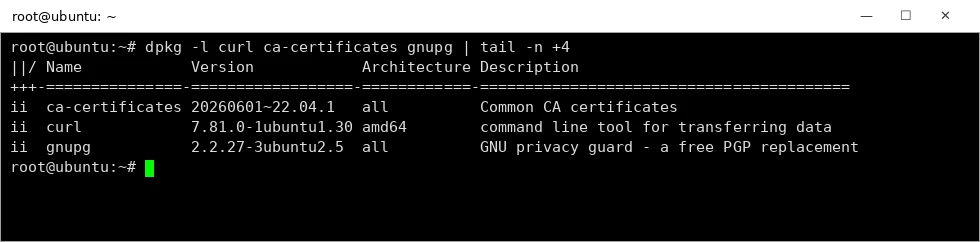
Step 3. Docker key and repository
Download Docker's GPG key — apt uses it to verify that packages are signed by Docker — and add the repository in the modern .sources format. The architecture and the Ubuntu codename are filled in automatically, so the same commands work on 24.04 too.
install -m 0755 -d /etc/apt/keyrings
curl -fsSL https://download.docker.com/linux/ubuntu/gpg -o /etc/apt/keyrings/docker.asc
chmod a+r /etc/apt/keyrings/docker.asc

tee /etc/apt/sources.list.d/docker.sources <<EOF
Types: deb
URIs: https://download.docker.com/linux/ubuntu
Suites: $(. /etc/os-release && echo "${UBUNTU_CODENAME:-$VERSION_CODENAME}")
Components: stable
Architectures: $(dpkg --print-architecture)
Signed-By: /etc/apt/keyrings/docker.asc
EOF

apt update
Check that Docker packages now come from download.docker.com:
apt-cache madison docker-ce | head -4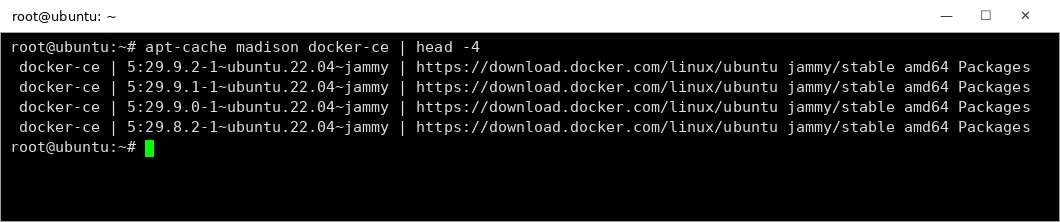
Step 4. Install Docker
Install Docker itself, the CLI, containerd and two plugins — buildx (image builds) and compose (running several containers from one file):
apt install -y docker-ce docker-ce-cli containerd.io docker-buildx-plugin docker-compose-pluginThe service starts by itself and is enabled at boot. Check the status — it should say active (running):
systemctl status docker --no-pager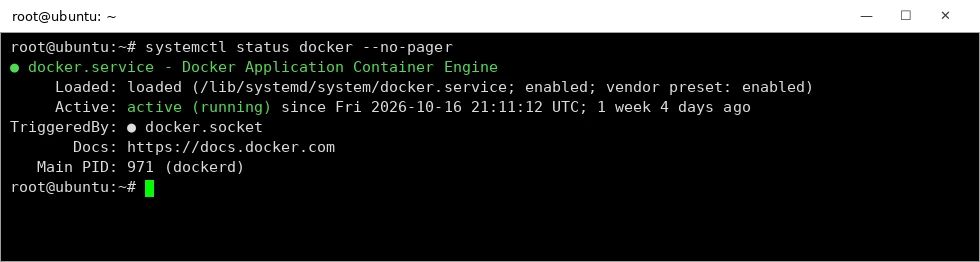
Final check — a test container. Docker pulls the tiny hello-world image and prints a greeting:
docker run hello-world
...
Hello from Docker!
This message shows that your installation appears to be working correctly.
Step 5. Docker Compose
When a project needs several containers at once — say a backend, a frontend and a database — managing them one by one is inconvenient. Docker Compose describes all services in a single docker-compose.yml and brings them up with one command.
Compose was already installed in step 4 as a plugin and is called with a space — docker compose:
docker compose version
docker buildx version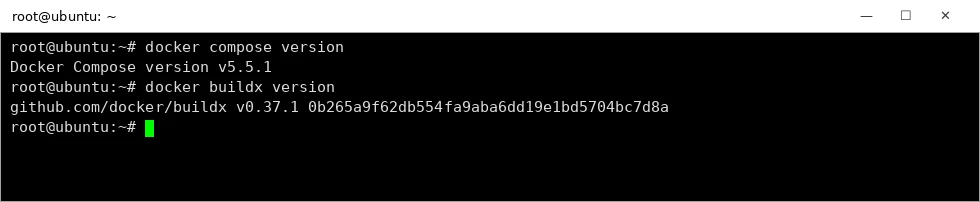
Running Docker without sudo
By default docker commands only work as root. To let a regular user run them without sudo, add the user to the docker group and log in again:
usermod -aG docker имя_пользователя     # username
# перезайти в систему, затем проверить / log out and back in, then check:
docker run hello-worldHow to remove Docker completely
apt purge -y docker-ce docker-ce-cli containerd.io docker-buildx-plugin docker-compose-plugin docker-ce-rootless-extras
rm -rf /var/lib/docker /var/lib/containerd     # удалит все образы, контейнеры и тома / deletes all images, containers and volumes
rm /etc/apt/sources.list.d/docker.sources /etc/apt/keyrings/docker.asc
Summary
- Install Docker from the official download.docker.com repository, not the docker.io package.
- Compose is the docker compose plugin; the separate docker-compose package isn't needed.
- Check: systemctl status docker and docker run hello-world.
GPU market news and breakdowns — in our Telegram channel @flux_vast_news