This guide is free. It takes you from bare hardware to an installed Ubuntu 22.04 Server — the base a Vast.ai host runs on. It covers writing the USB stick, BIOS settings and every installer screen. Disk partitioning gets its own detailed part: get it right the first time, because redoing it means reinstalling.
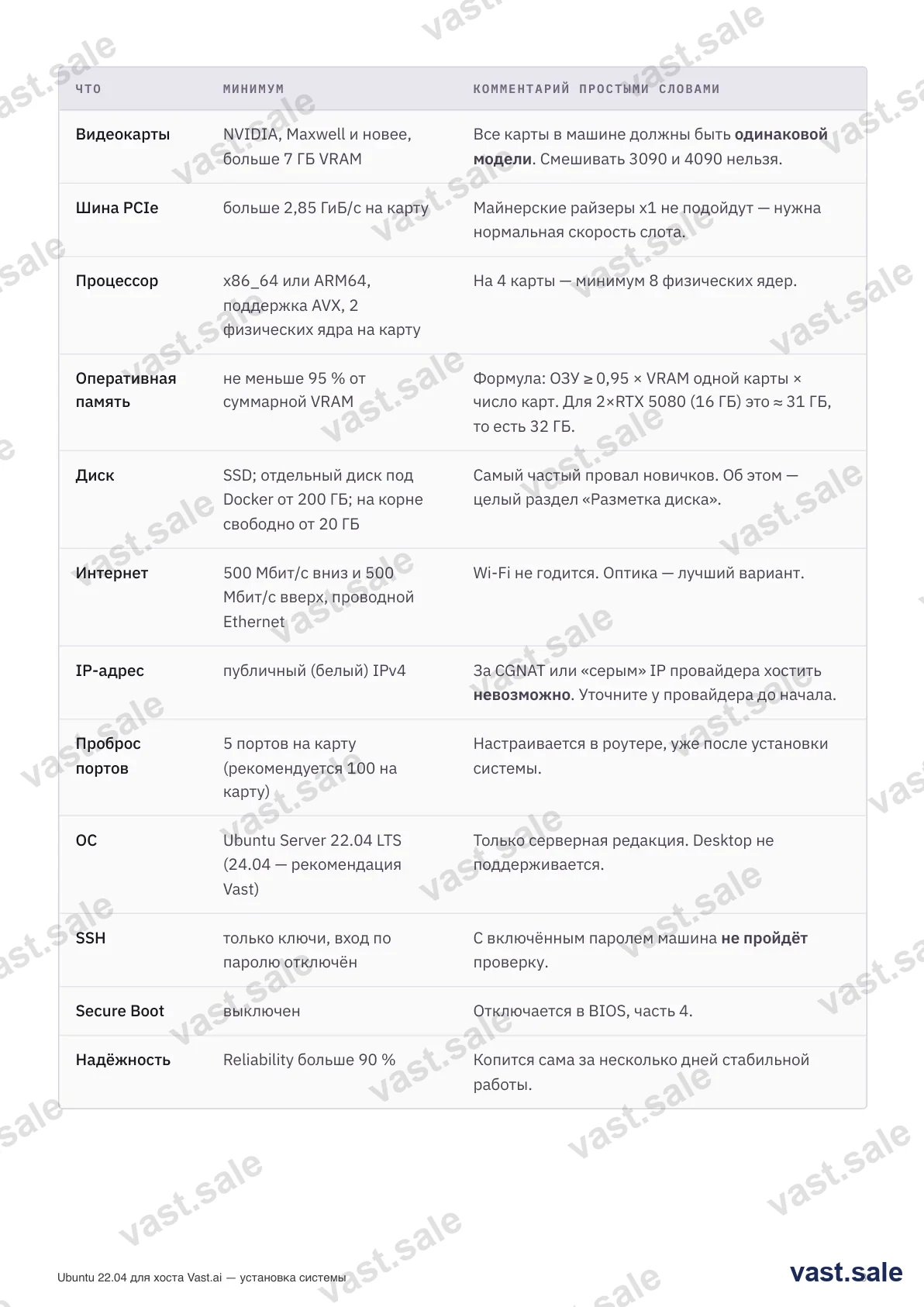
Vast.ai minimum requirements
Check this before buying anything. If the hardware or network is below the minimum, the machine won't get Verified — and without that almost nobody rents it.
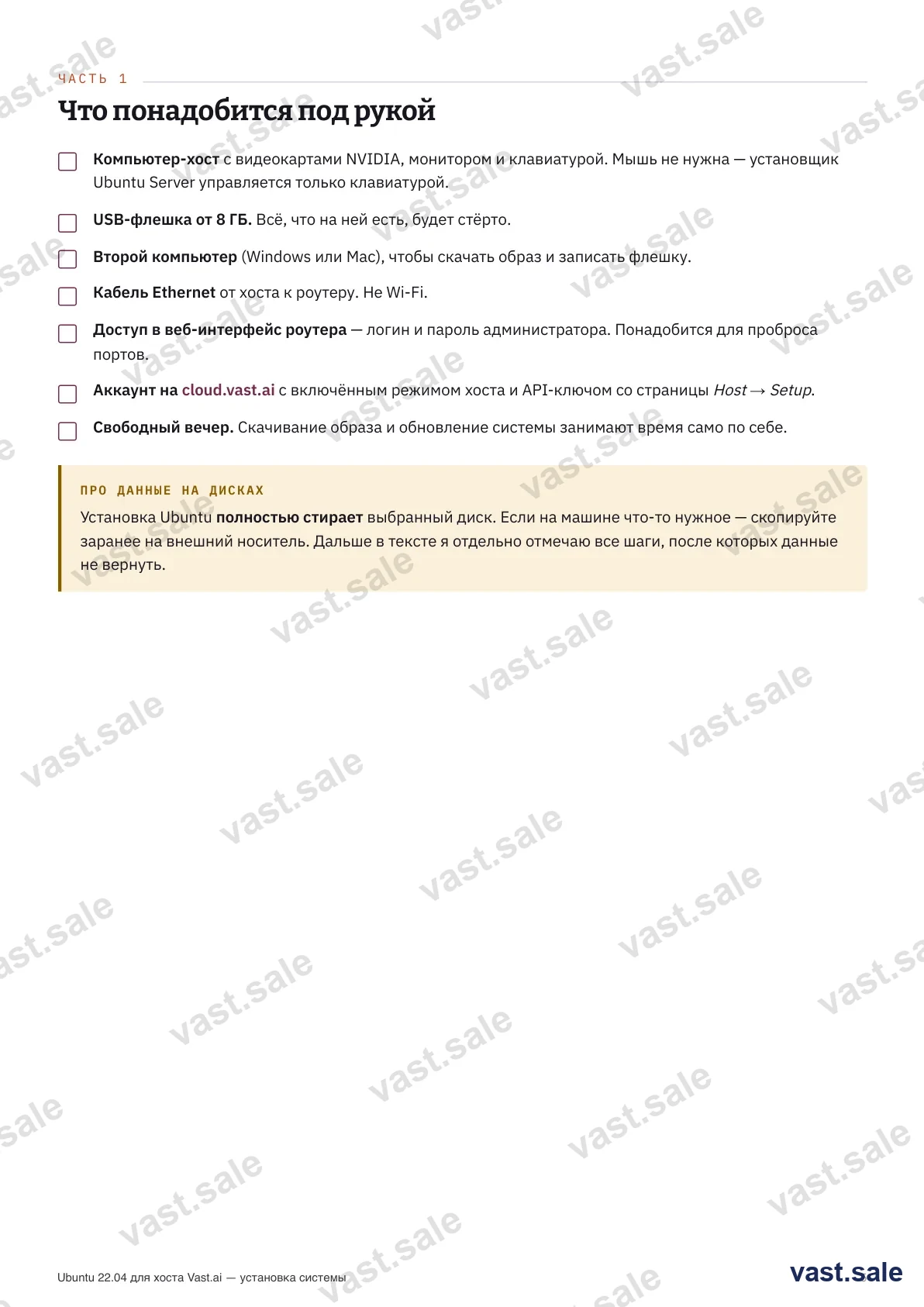
What to have on hand
Step 1. Download the image and balenaEtcher
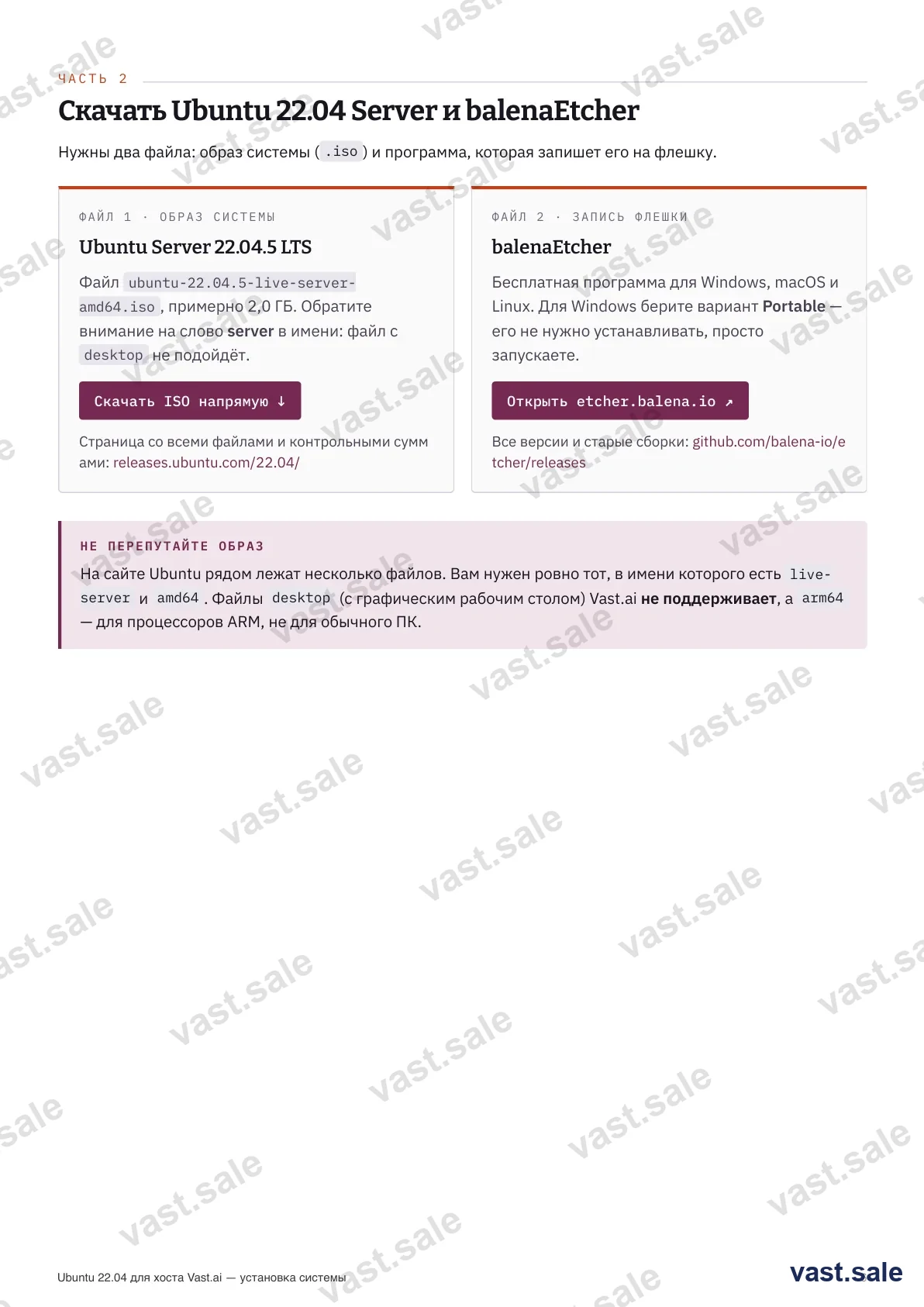
You need two files, download them on another computer. The system image: https://releases.ubuntu.com/22.04/ — the file ubuntu-22.04.5-live-server-amd64.iso, about 2 GB. It must have live-server and amd64 in the name; desktop and arm64 files won't work. The USB writer: https://etcher.balena.io — on Windows take the Portable build, no install needed.
Step 2. Write the boot USB
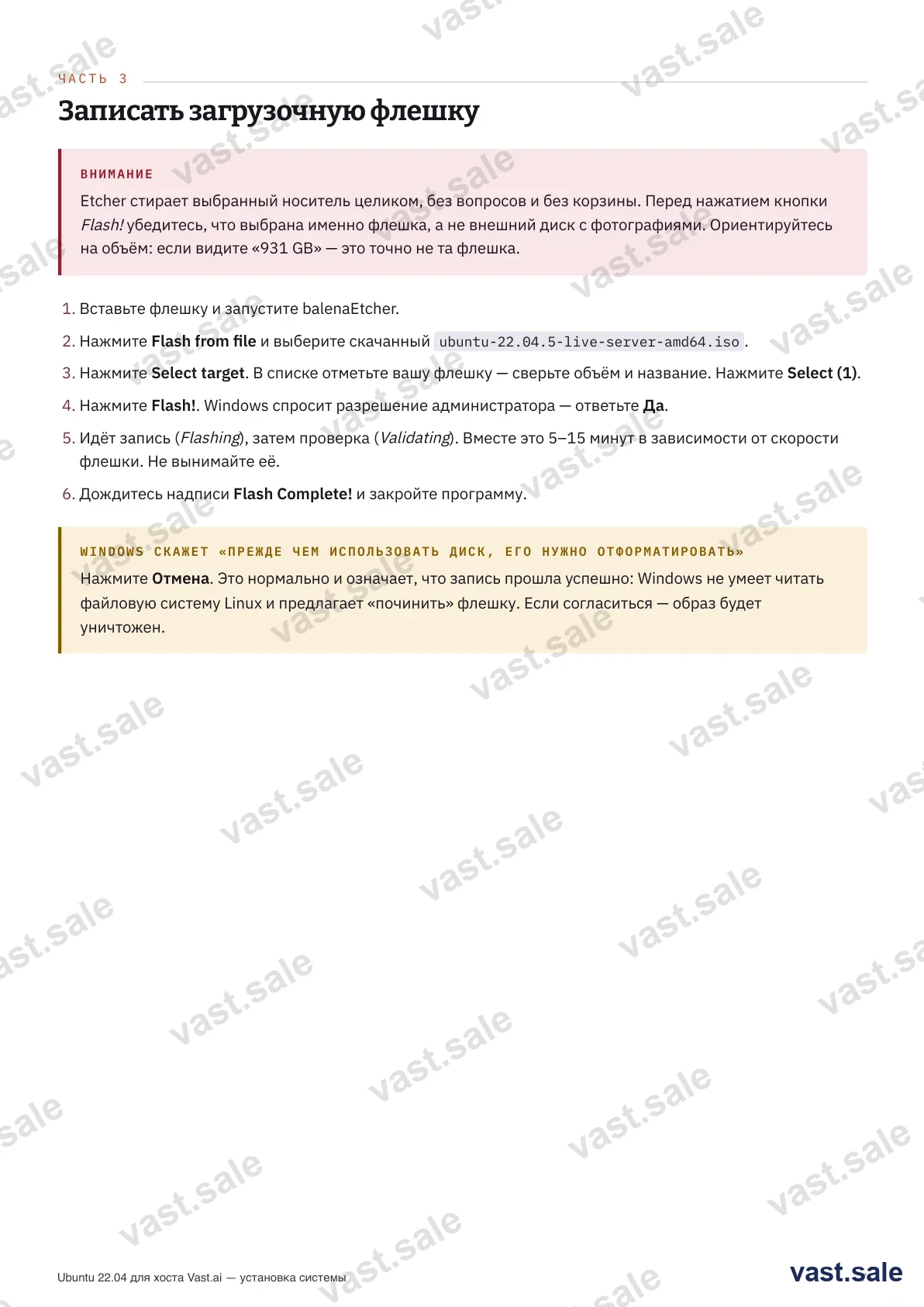
Etcher wipes the whole target, no recycle bin. Before pressing Flash!, make sure you picked the USB stick, not an external drive. Order: Flash from file → pick the .iso → Select target → choose the stick → Flash!. If Windows offers to "format the disk" afterwards, click Cancel: that's normal — Windows just can't read the Linux filesystem.
Step 3. BIOS/UEFI setup
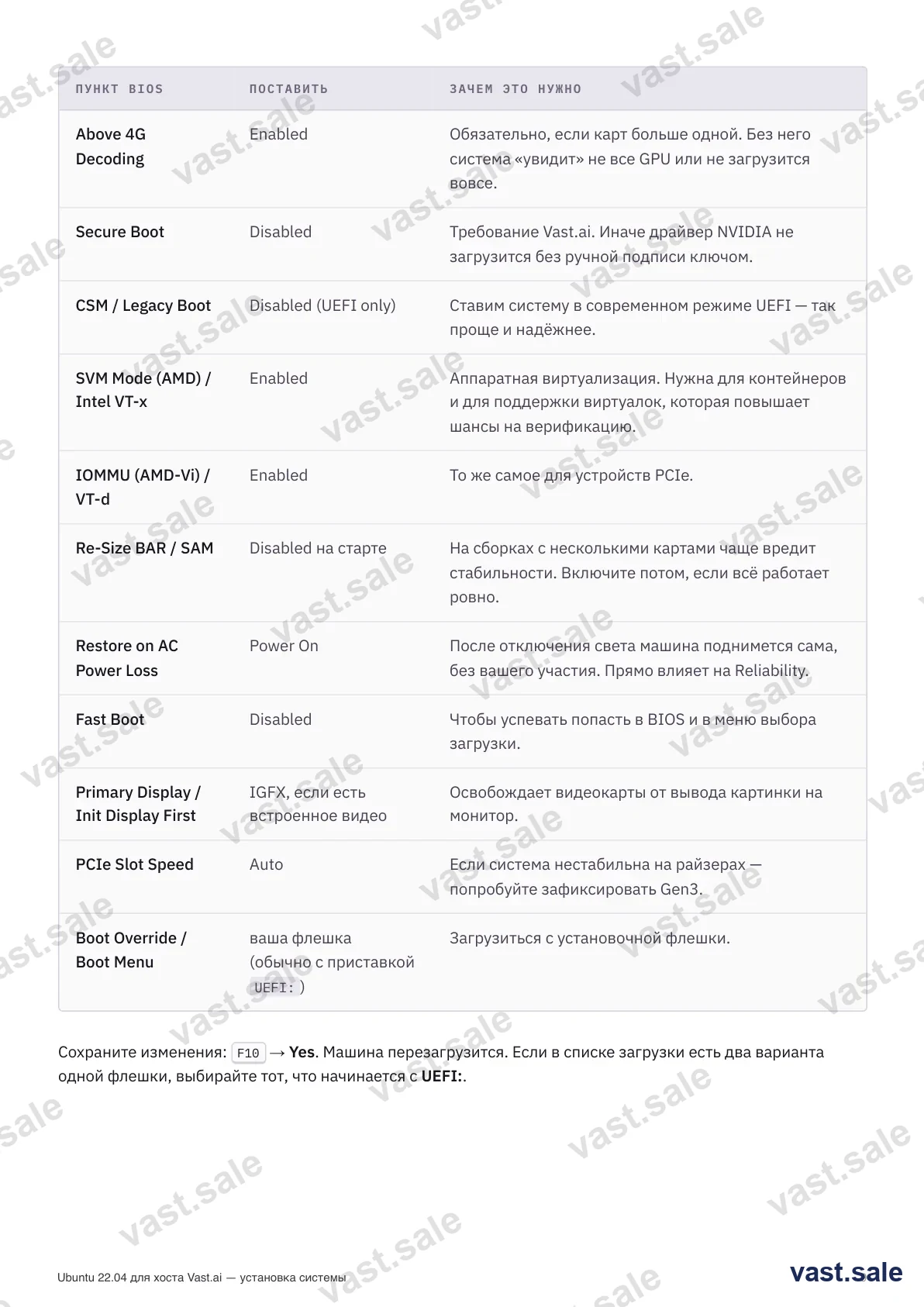
Connect a monitor, keyboard and Ethernet cable, insert the stick and power on, immediately tapping the BIOS key (usually Del, sometimes F2). Menu names vary by board, the meaning is the same. Key items: Above 4G Decoding — Enabled (required with multiple cards), Secure Boot — Disabled (Vast requirement), virtualization SVM/VT-x and IOMMU/VT-d — Enabled, Restore on AC Power Loss — Power On (the machine comes back by itself after an outage). If you plan to rent the machine out for virtual machines, the BIOS also needs ACS — what exactly to enable and how to verify it: https://vast.sale/articles/a20?lang=en
Step 4. Installer: boot and language
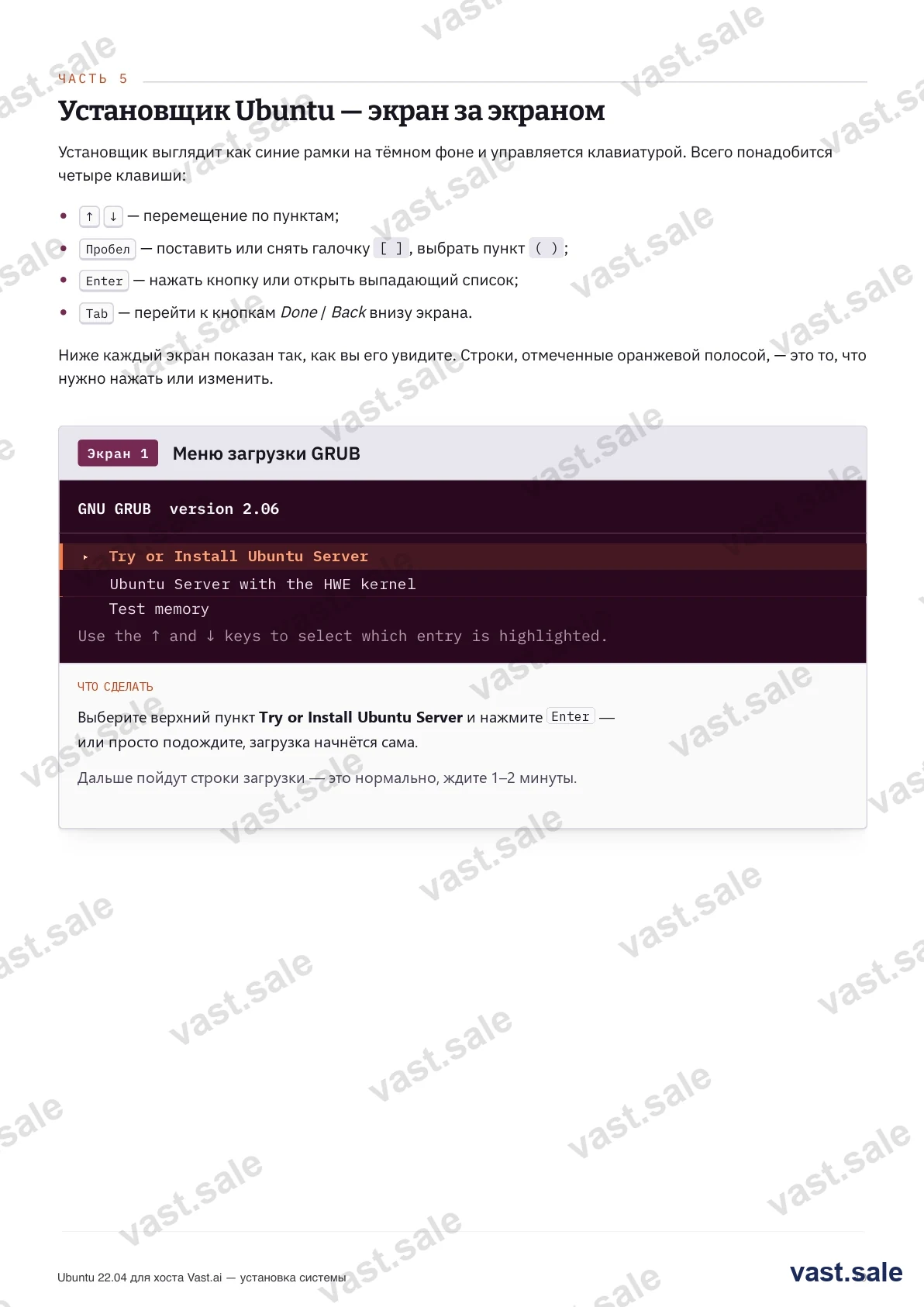
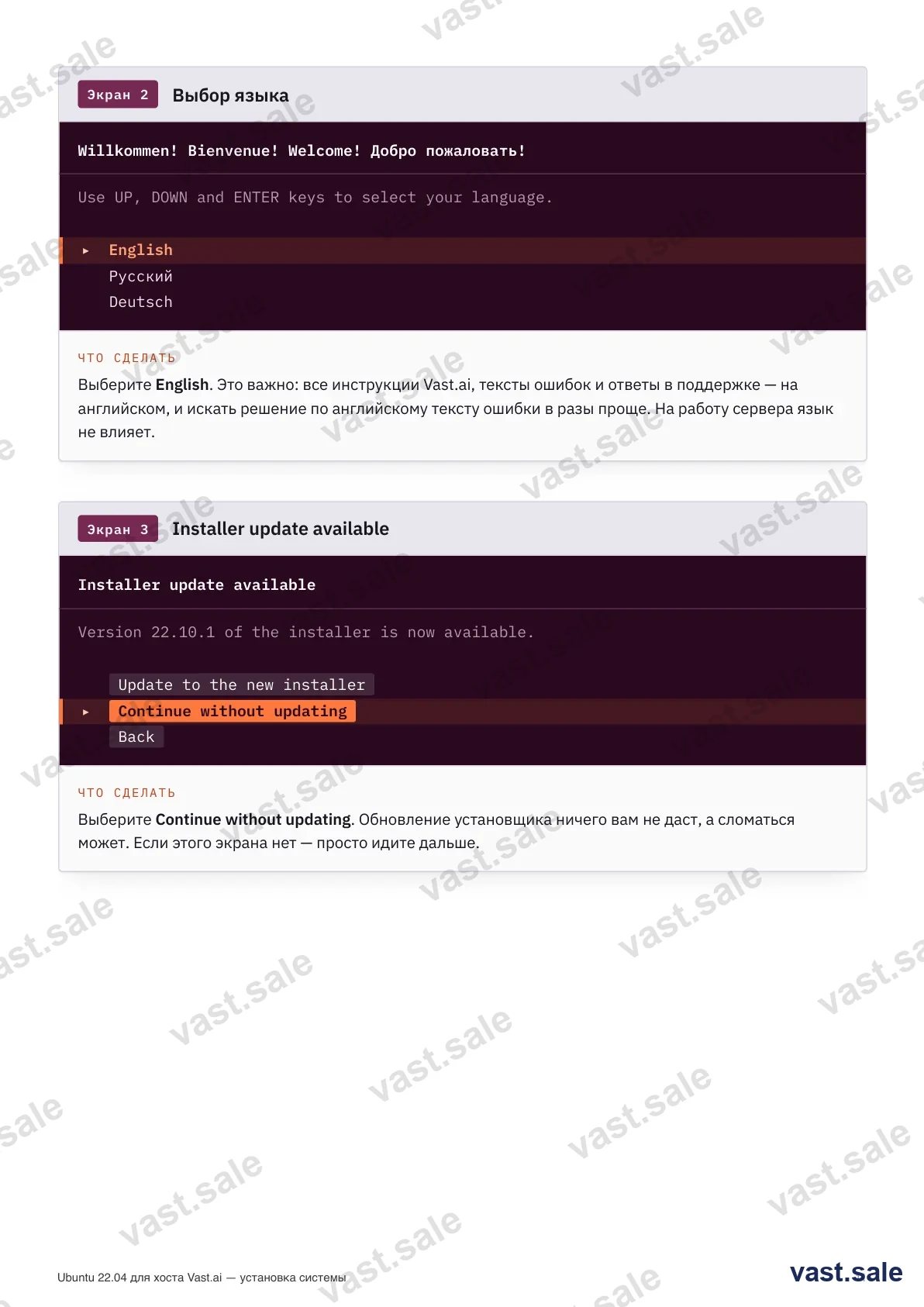
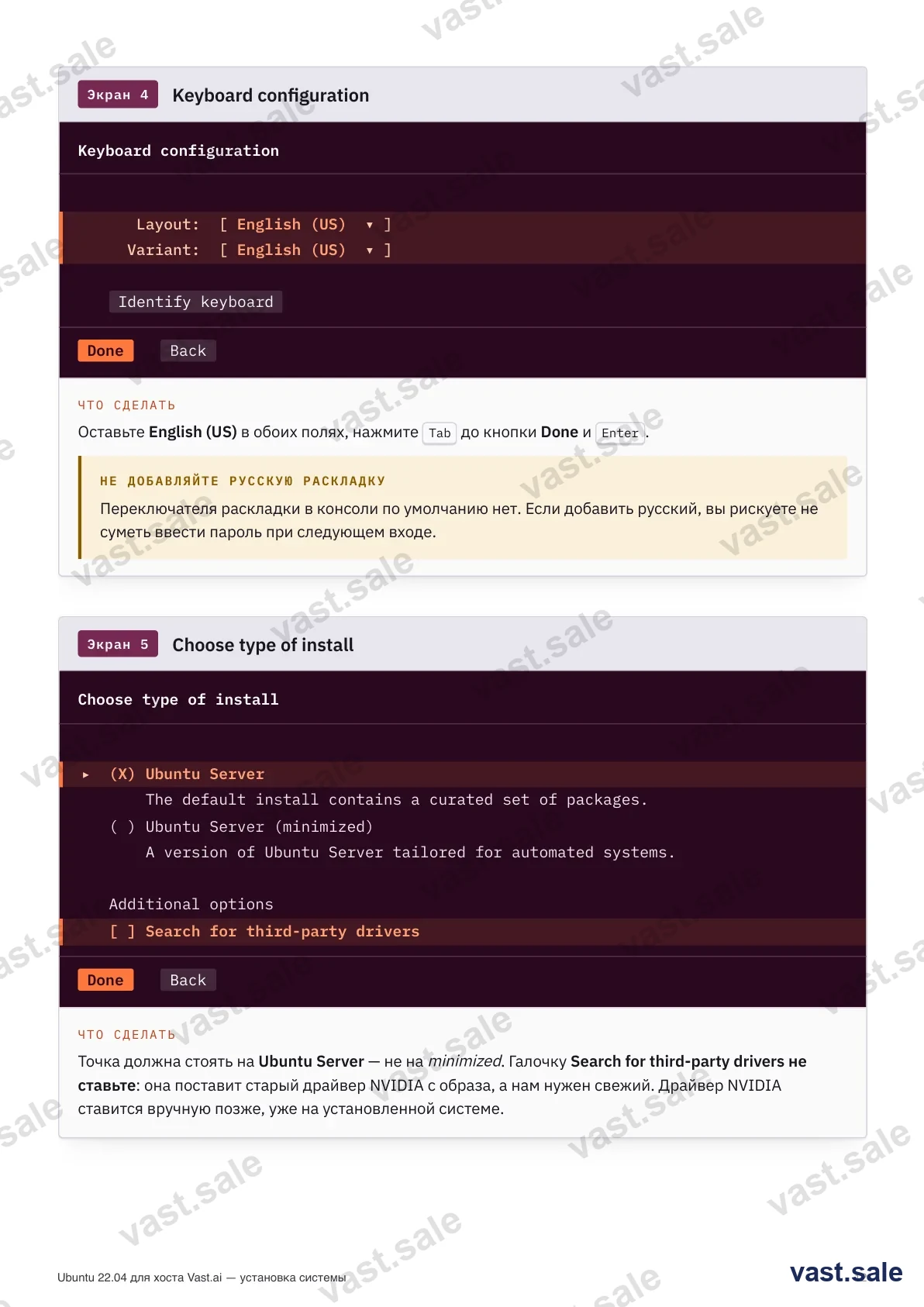
In the GRUB menu keep the top entry "Try or Install Ubuntu Server" and press Enter — or just wait, it boots on its own. Keep the UI language and keyboard as English: all Vast docs and error messages are in English, so searching is easier. Don't add a Russian layout or you may fail to type the password at login. Skip the installer update (Continue without updating).
Step 5. Install type and network
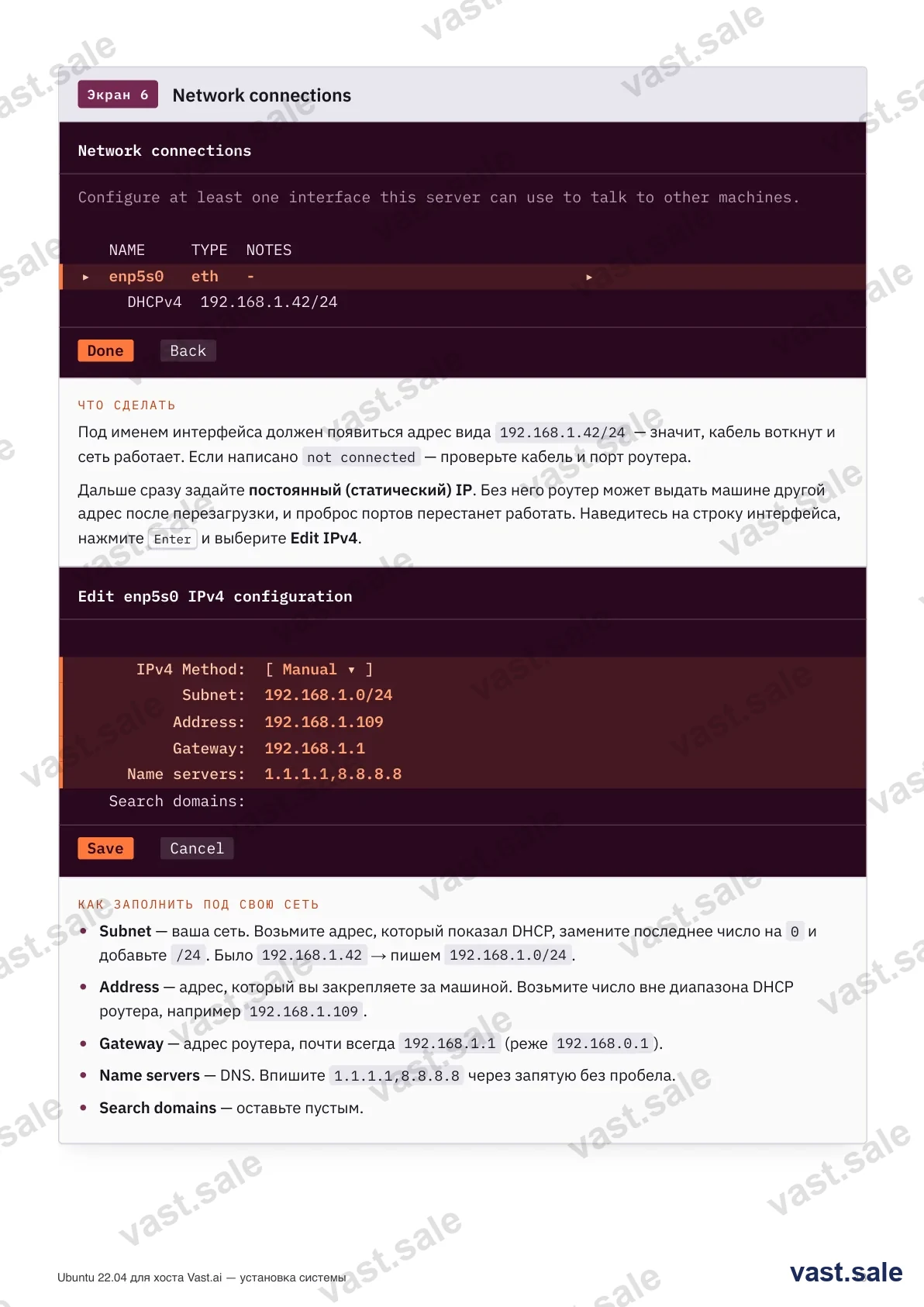
Install type — Ubuntu Server (not minimized). Don't tick "Search for third-party drivers": it installs an old NVIDIA driver, and a fresh one is installed manually later. On the network screen you don't type anything: the IP comes automatically over DHCP — wait for an address like 192.168.1.42/24 next to the interface, write it down (you'll connect over SSH with it) and press Done. A permanent static address is pinned later, during rig setup.
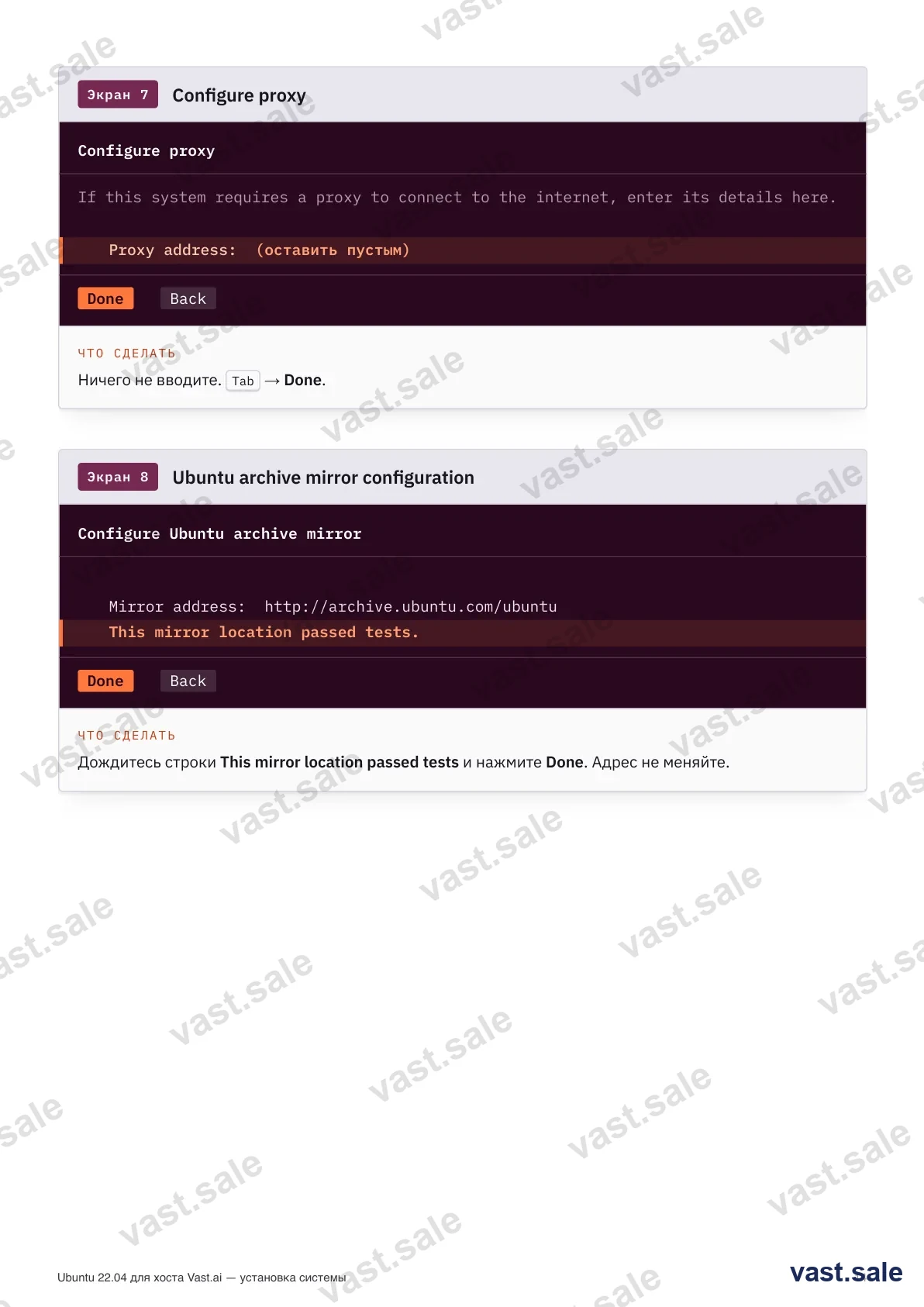
Leave the proxy empty. On the archive mirror screen wait for "This mirror location passed tests" and press Done without changing the address.
Step 6. Disk partitioning — the most important step
Everything a renter uploads (Docker images, datasets, models) goes to /var/lib/docker. Vast requires a separate XFS partition with quotas under that folder — that's the only way the system caps each client to their allotted space. Good news: you don't create that partition by hand. The Vast installer finds the largest unpartitioned area, creates a vast_client_data XFS partition there and adds it to fstab.
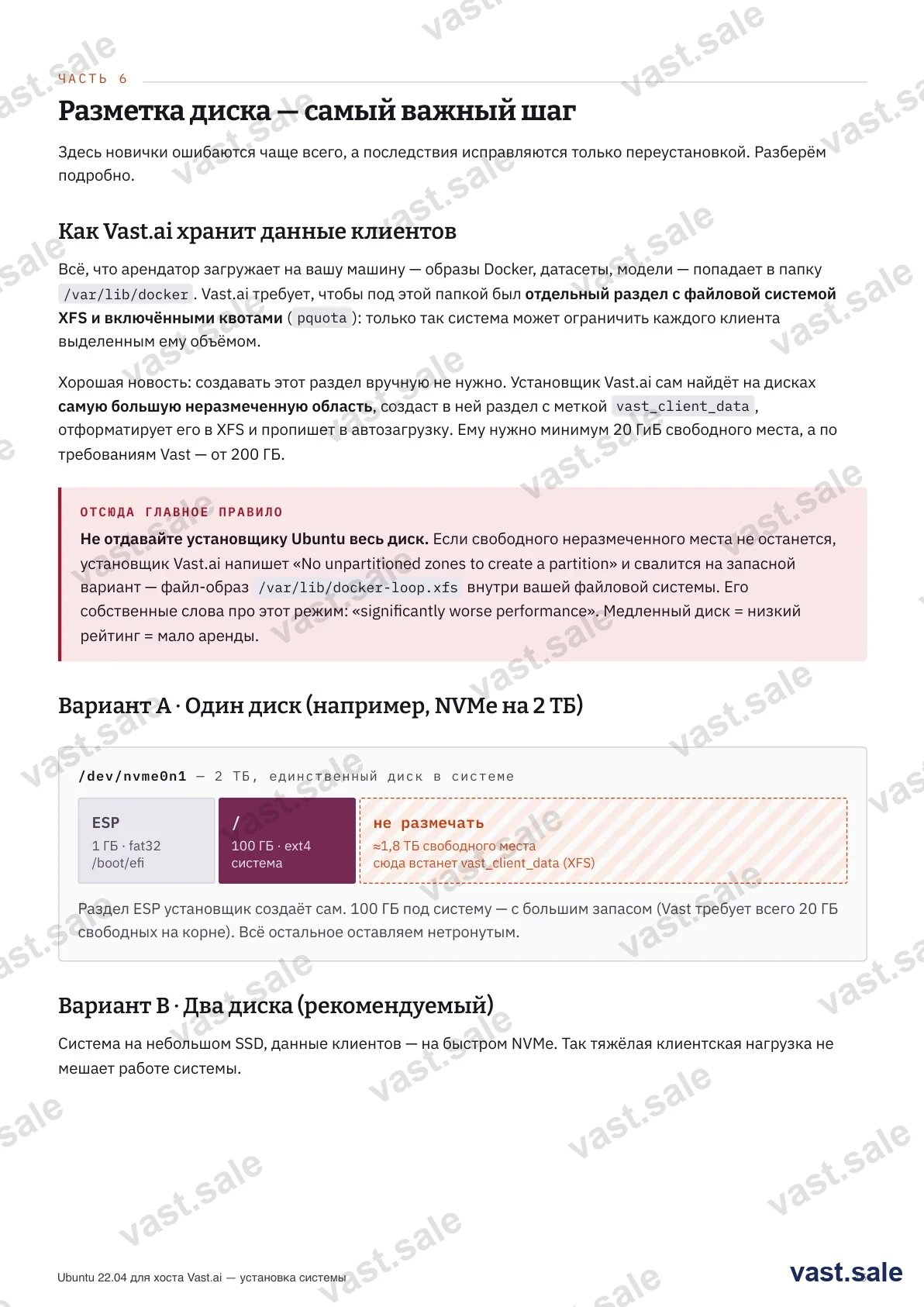
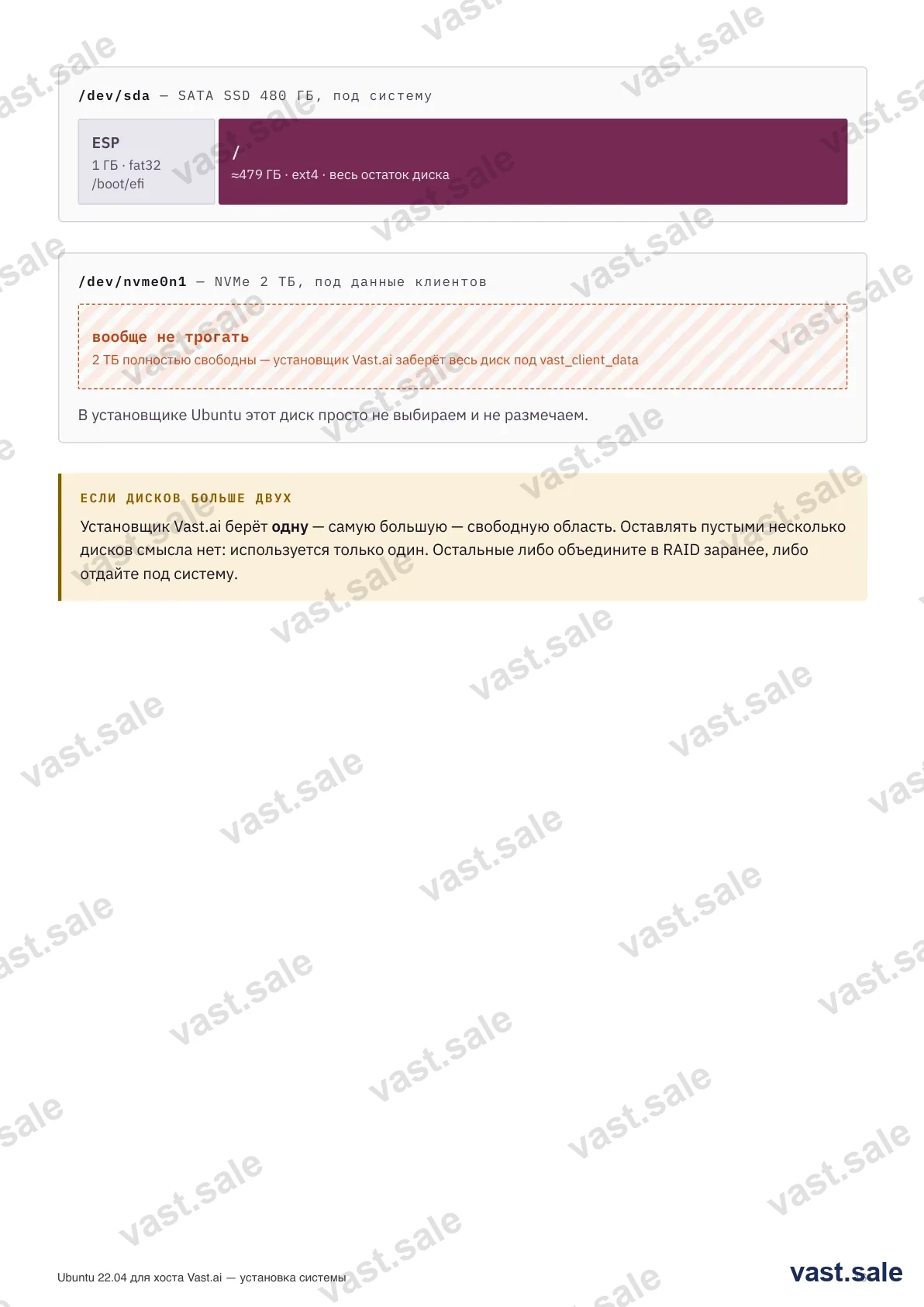
On the Guided storage screen the choice depends on how many disks the machine has, and this is the one screen that decides your disk speed for years. With a single disk, pick Custom storage layout. "Use an entire disk" hands all the space to the system, leaves nothing free, and the Vast installer falls back to loopback: an image file instead of a partition, with "significantly worse performance" in its own words. A guided LVM install is the same trap from the other side — the volume group takes the whole disk. That is exactly what happened to us on the RTX 5090 machine: a 3.6 TB disk went entirely to LVM, and docker there still lives in /var/lib/docker-loop.xfs on a loop device. It works, but it is a patch over a wrong start, and only a reinstall removes it. With two disks the job is simpler: install the system disk with guided LVM and leave the second disk completely untouched — the Vast installer will claim all of it for XFS. That is how our four-RTX-4090 and two-RTX-5080 machines are built. Do not take LUKS in either case: the machine will wait for a keyboard password at every reboot, and a server that cannot come up on its own loses Reliability.
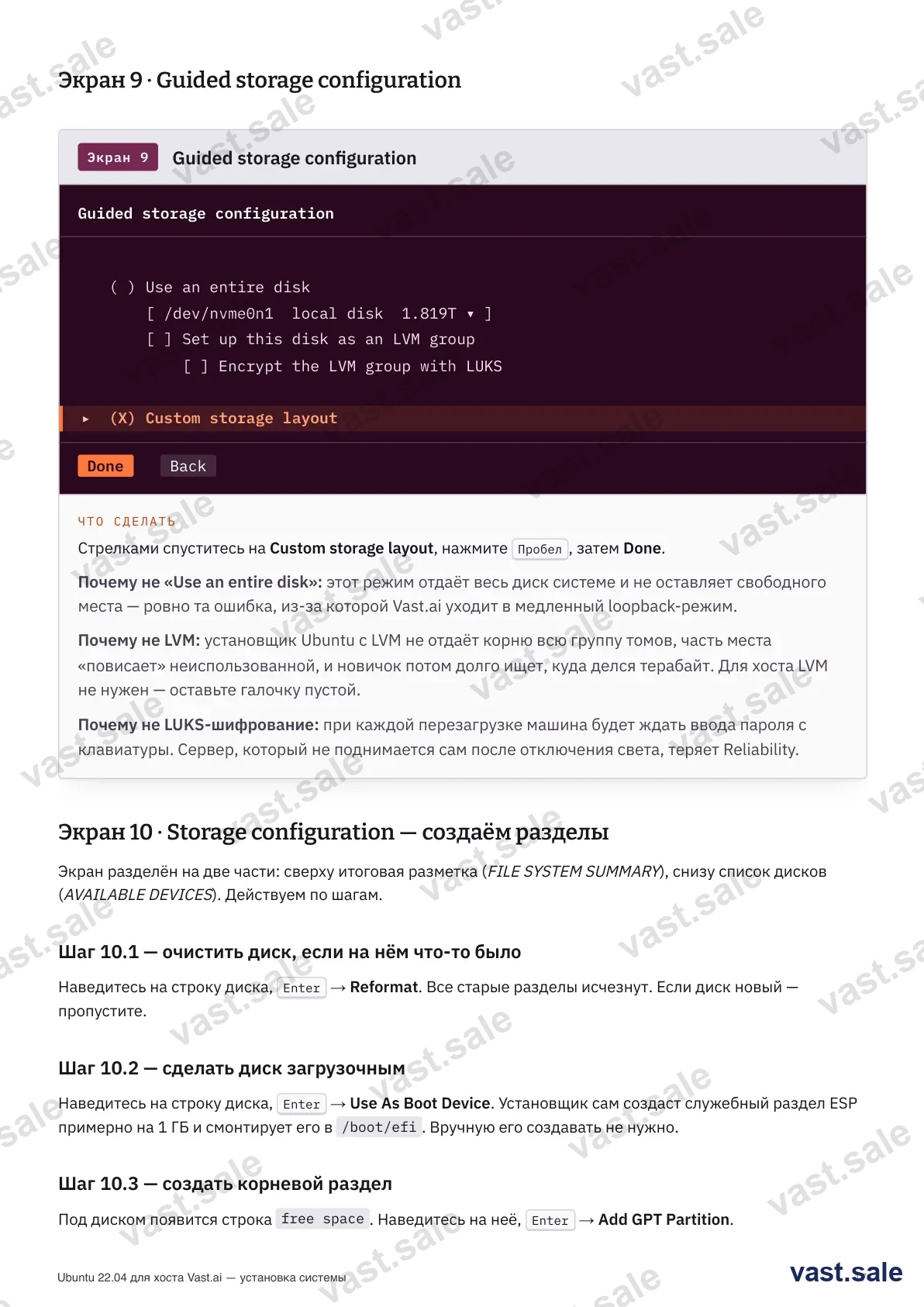
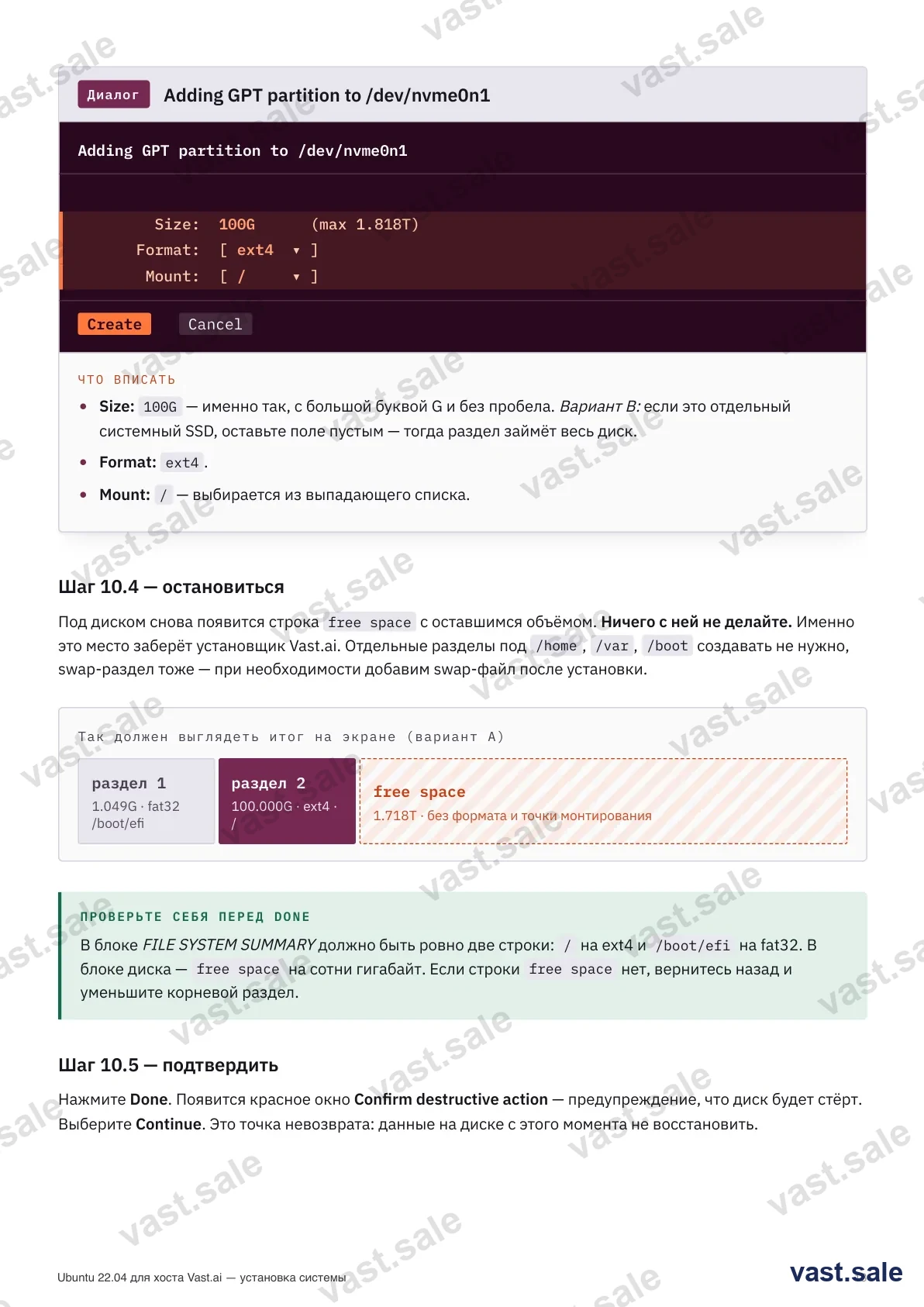
Then step by step: highlight the disk → Enter → Use As Boot Device (the installer creates a ~1 GB ESP at /boot/efi). Then on the free space line → Add GPT Partition → Size 100G, Format ext4, Mount /. And stop: a free space line of hundreds of GB appears again — leave it, that's what the Vast installer will claim. Don't create separate /home, /var or swap partitions (add swap as a file later if needed). Before Done, check: FILE SYSTEM SUMMARY shows exactly / on ext4 and /boot/efi on fat32, with free space below.
Step 7. Profile, Ubuntu Pro, SSH
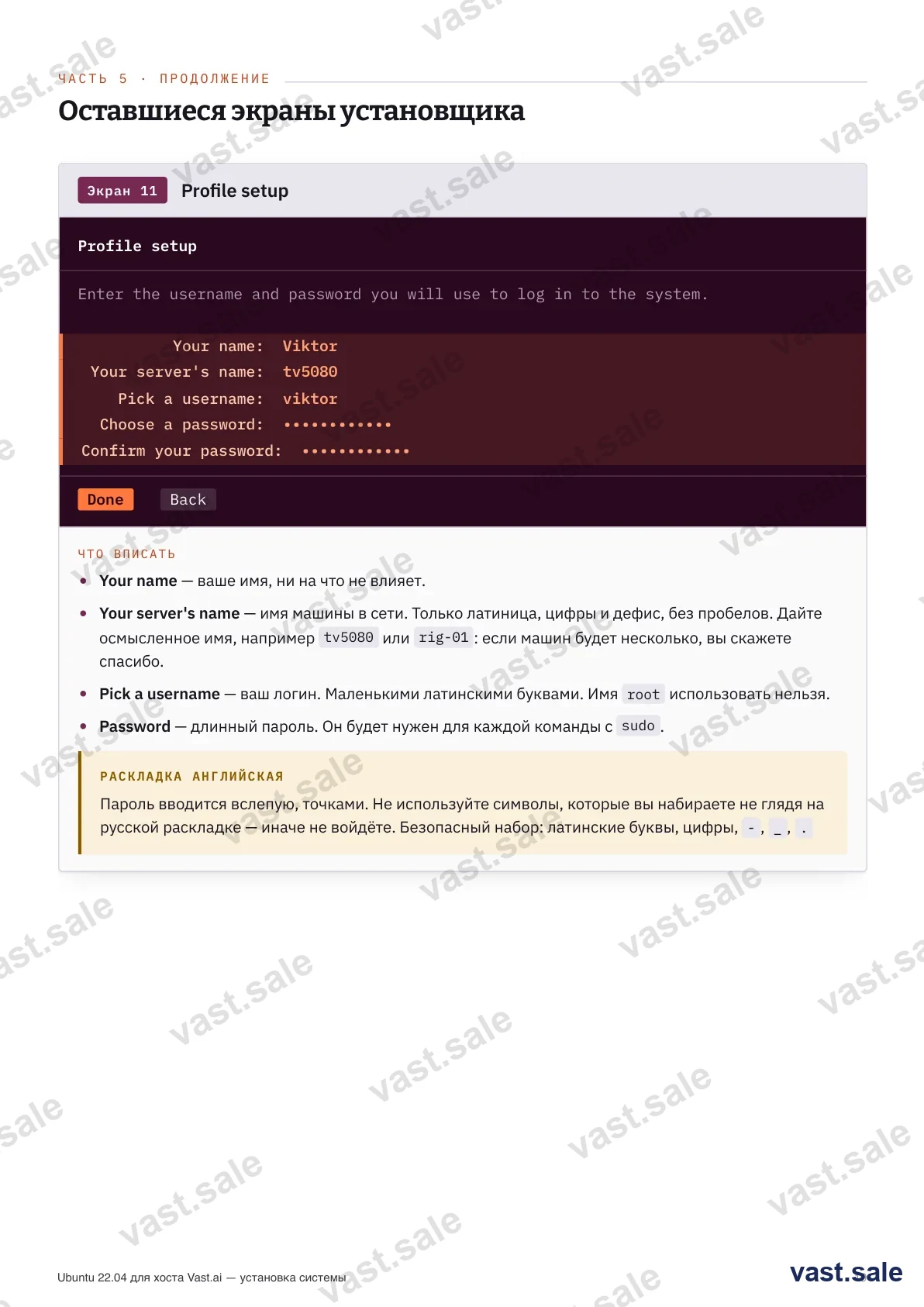
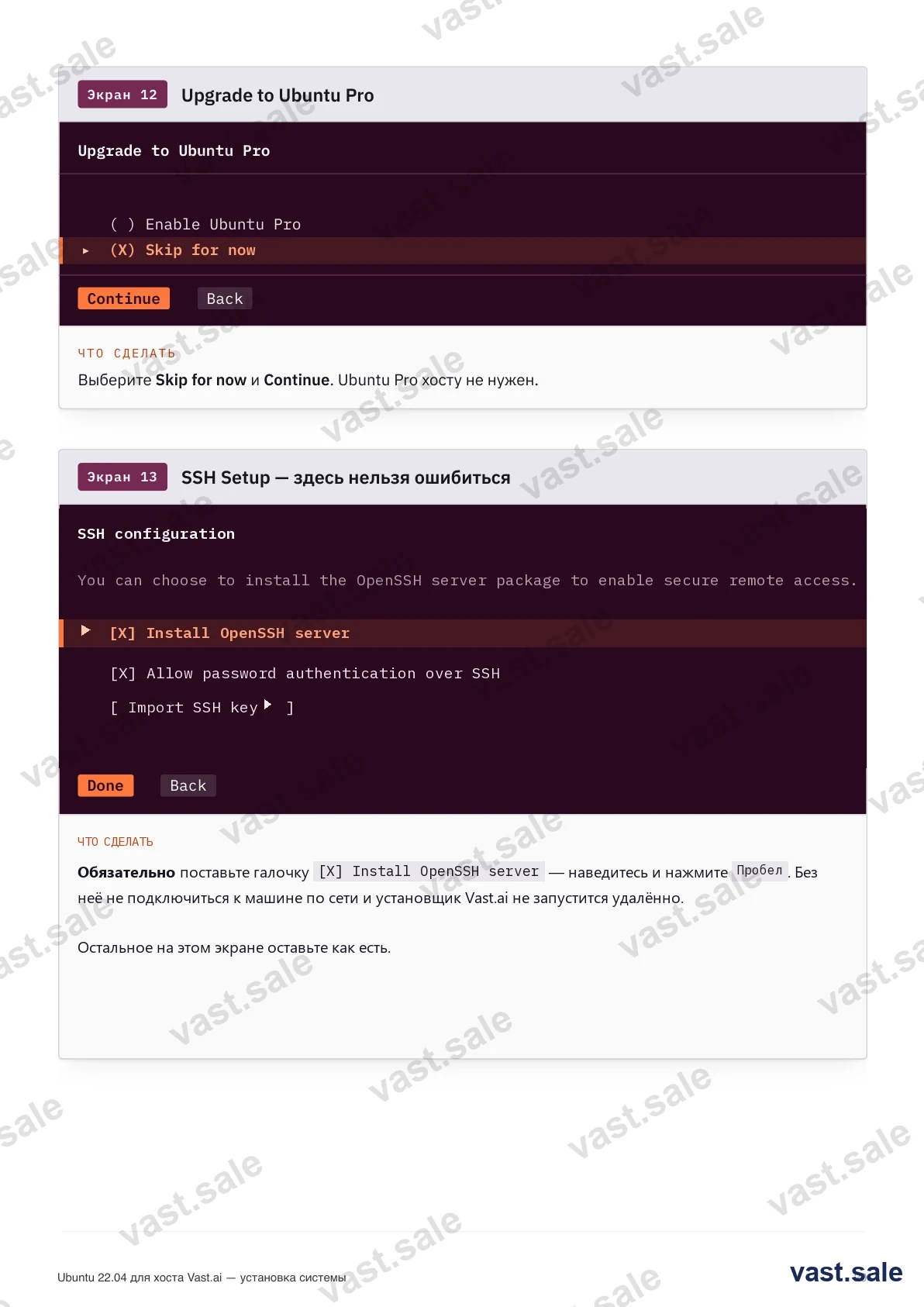
Server name — latin, meaningful (e.g. rig-01): you'll thank yourself with several machines. Username in lowercase latin, root is not allowed. Password long, latin and digits only (typed blind, a Russian layout will trip you up). Ubuntu Pro — Skip for now.
The SSH screen — don't get this wrong. Make sure to tick [X] Install OpenSSH server: without it you cannot reach the machine over the network and the Vast installer will not run remotely. Leave everything else on this screen as it is.
Step 8. Snaps, install and reboot
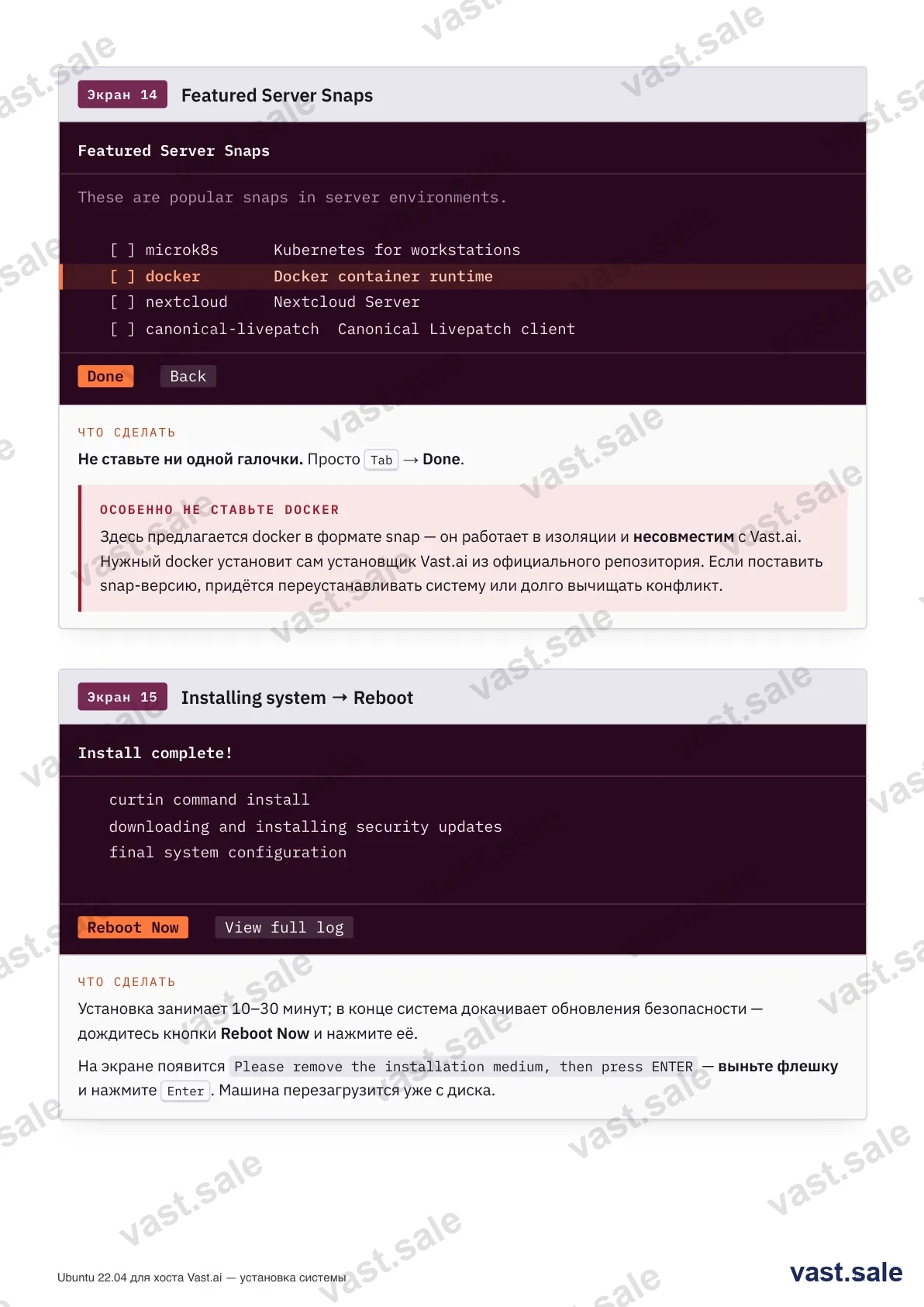
On the Featured Server Snaps screen tick nothing. Especially not docker as a snap — it runs isolated and is incompatible with Vast; the right Docker is installed by the Vast installer from the official repo. Then the system installs (10–30 min) and pulls security updates; wait for Reboot Now, remove the stick and press Enter.
Done. What's next
Ubuntu is installed. Next comes the host itself: the NVIDIA driver, disabling auto-updates, SSH keys, installing the Vast.ai host software and forwarding ports on the router. The path to earnings is covered in the articles and the paid server-setup guide.
Sources checked against: Vast.ai minimum requirements, the host installer console.vast.ai/install (the free-space logic for vast_client_data comes from it), the Ubuntu 22.04.5 LTS images and balenaEtcher. The screens may look slightly different across 22.04 point releases — the meaning stays the same.
GPU market news and breakdowns — in our Telegram channel @flux_vast_news